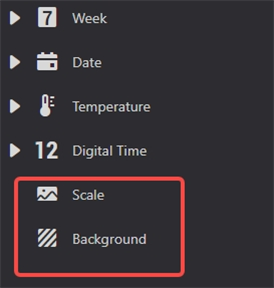
Background
Add background
Create a new Watchface (or edit an existing Watchface), add the "Background - Background" module from the top toolbar of the Watchface maker, and select "Background" in the left menu
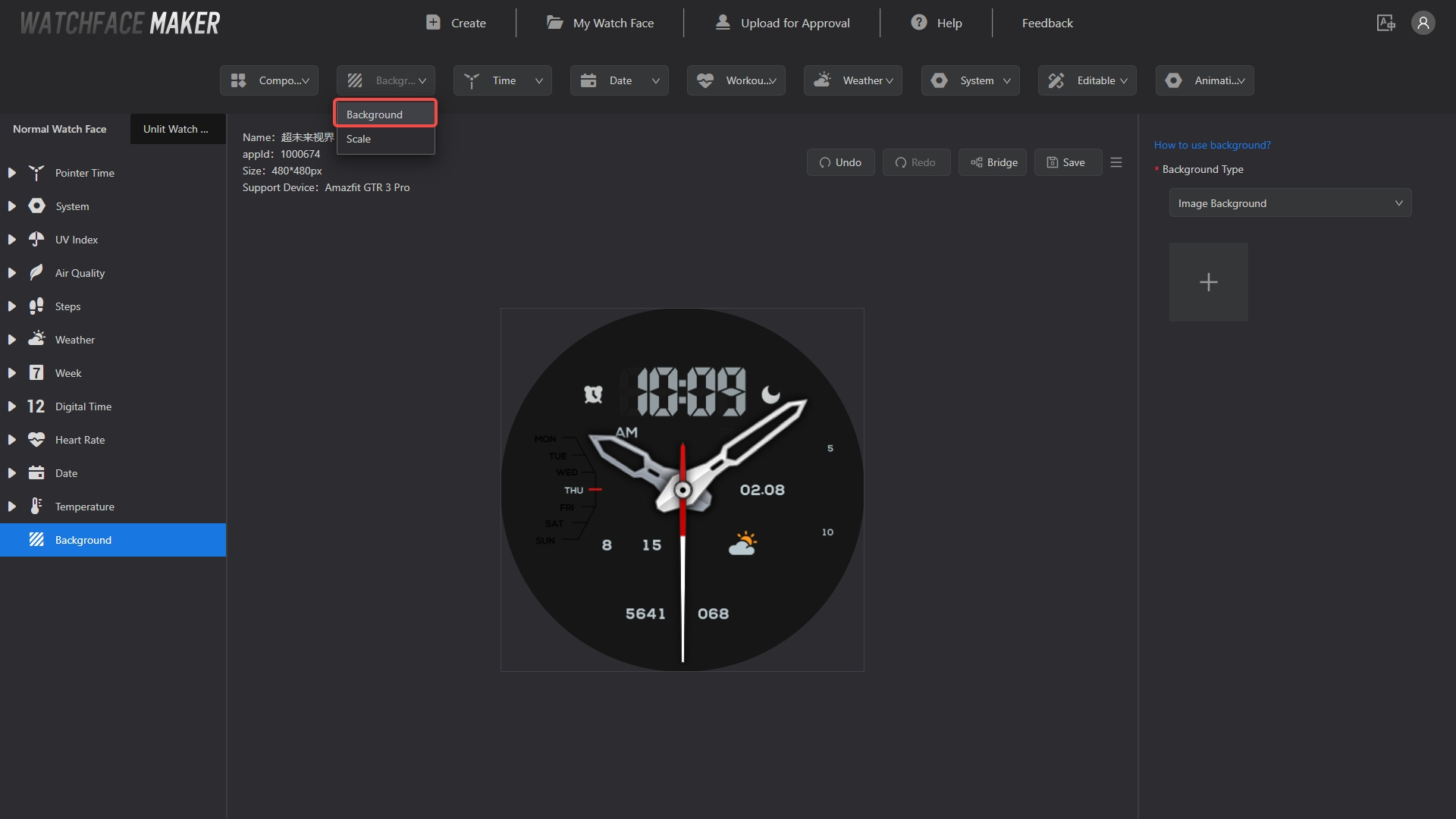
Select from the "Background Type" drop-down box on the right menu
| Watch face Type | Background Type |
|---|---|
| ZeppOS | 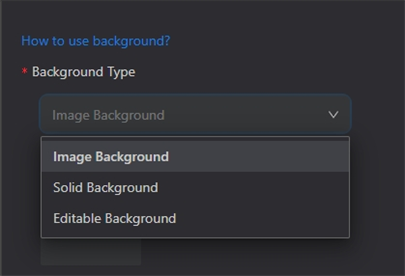 |
| Non-ZeppOS | 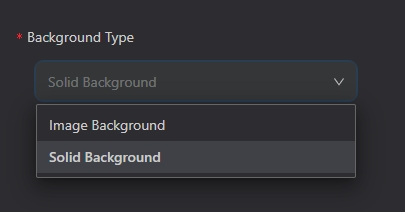 |
Image background
Material
Background image less than or equal to the size of the Watchface
Operation
Upload the image in the right menu
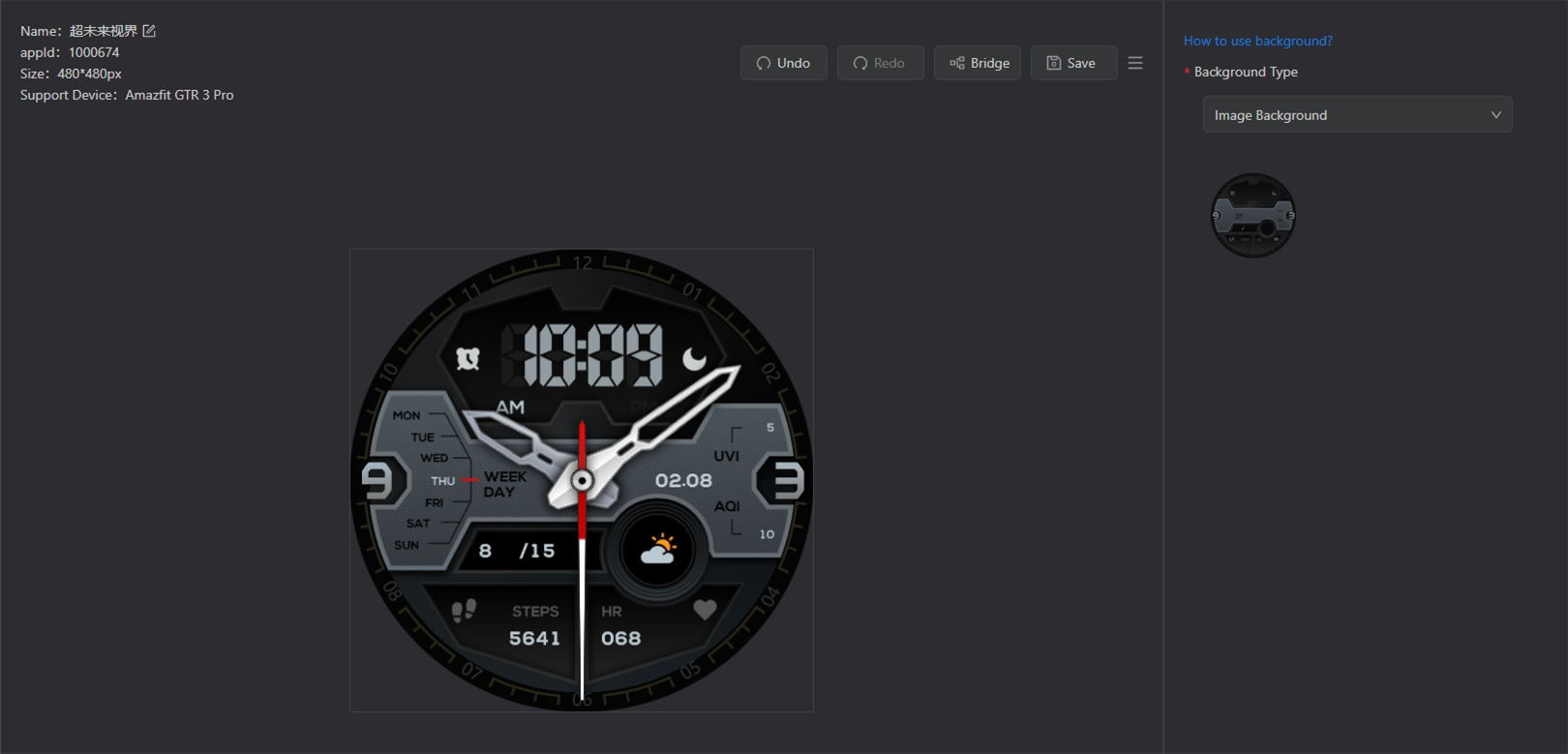
Preview and use
See Install through scanning QR code
Solid background
Material
None
Operation
Modify "Color Value" in the right menu
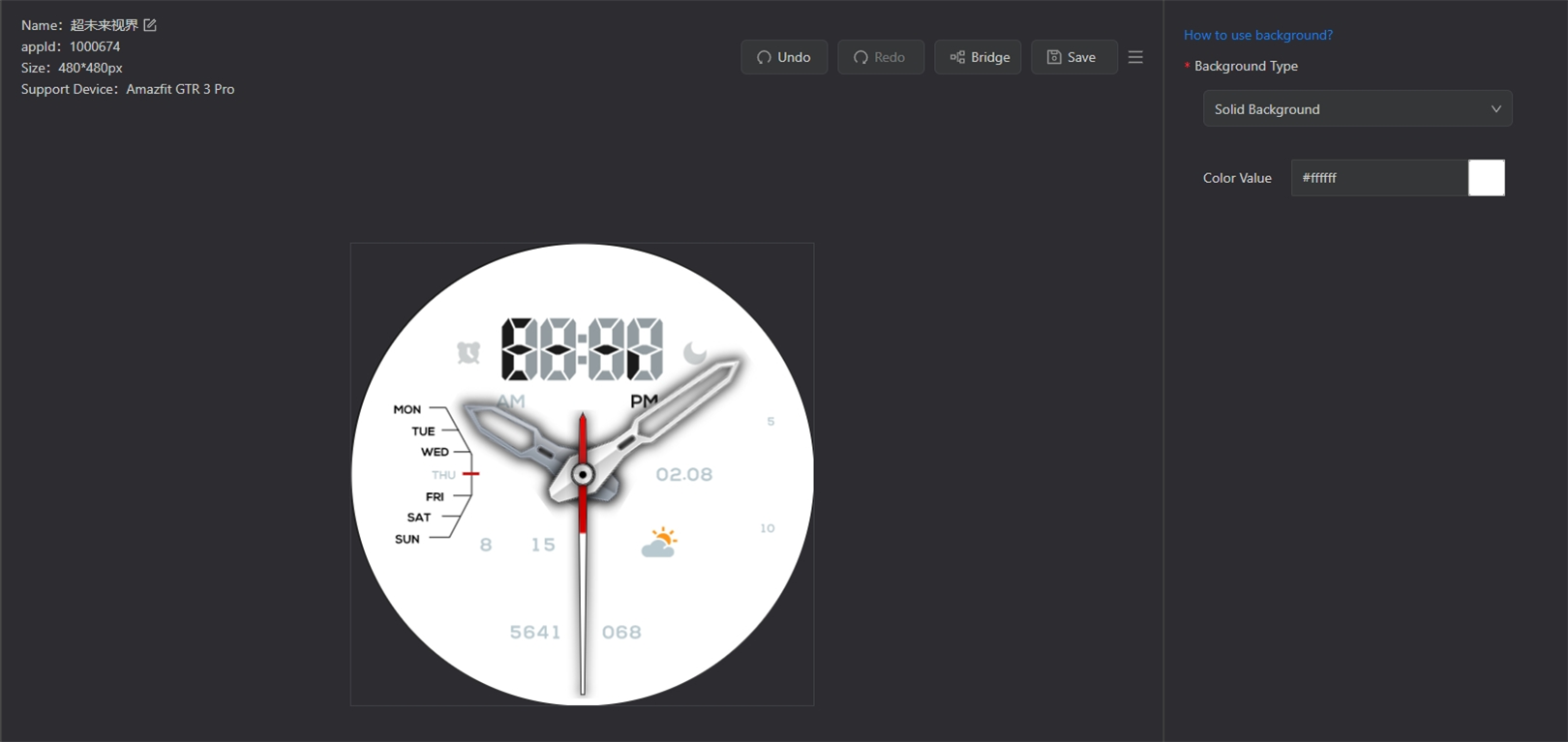
Preview and use
See Install through scanning QR code
Editable background
Only ZeppOS Watchface support editable background
Material
Prepare relevant materials according to the prompts on the right menu
-
Prepare the corresponding number of background images and their corresponding preview images. There may be placeholder images of some controls in the background image, so a relatively pure preview image can be provided for selection. Of course, you can also use the background image directly as a preview image
-
Prepare an image that highlights the background image when selecting the background
-
Prepare an image that highlights the selection information when selecting the background
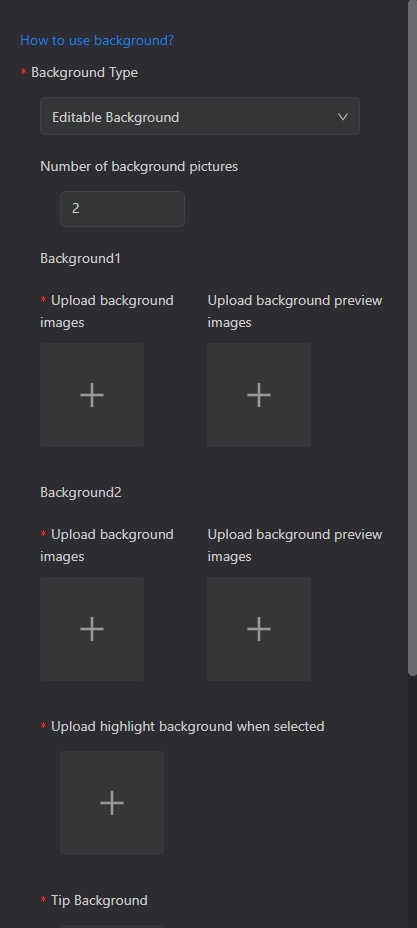
Operation
-
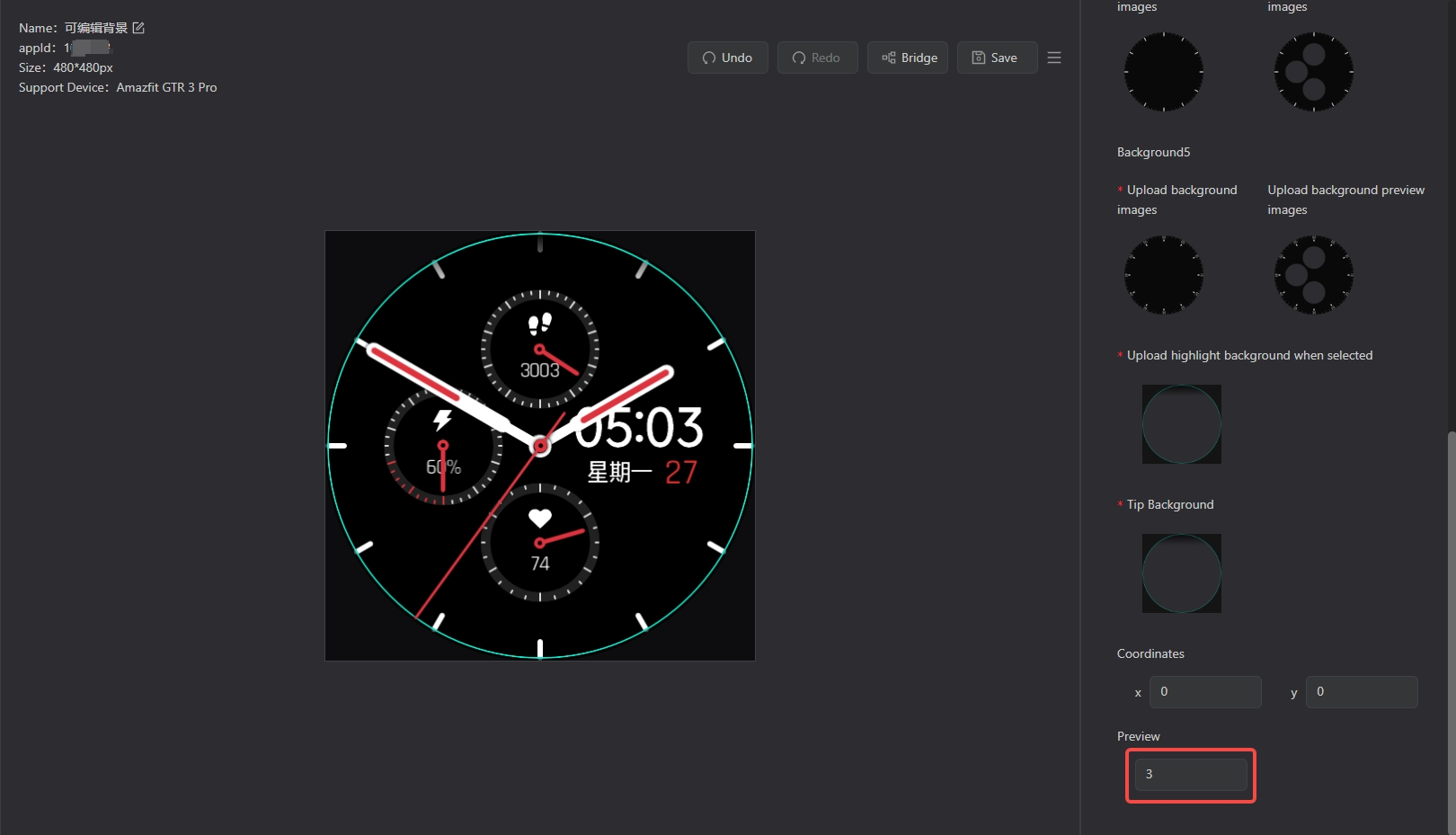
Select "Number of background pictures" in the right menu
-
Upload the corresponding material
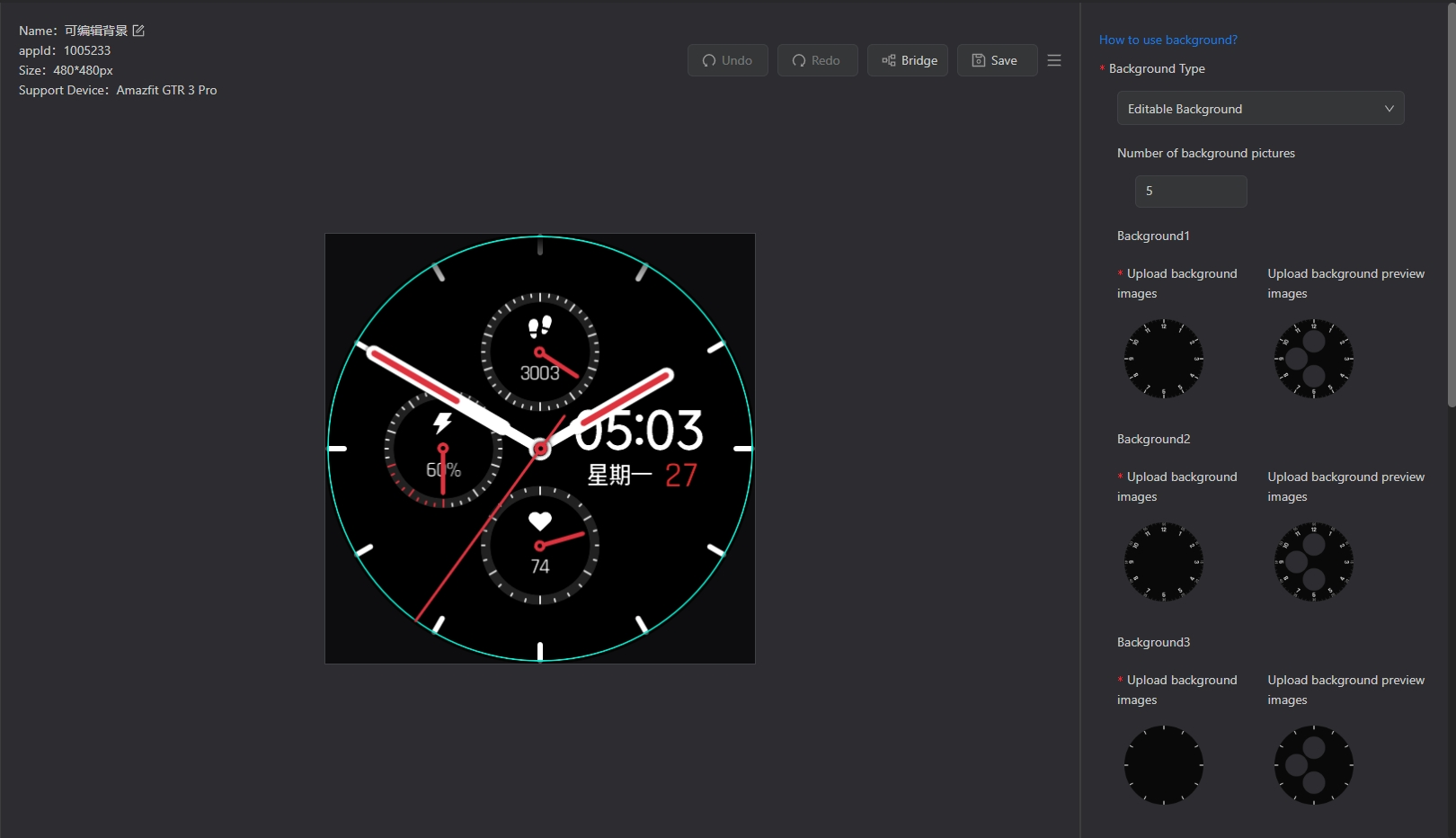
Preview
- After all options are set and the material is uploaded, you can switch the Watchface background through the preview option at the bottom
Use
-
Install the Watchface with editable background controls on your device via the developer mode of the Zepp APP
-
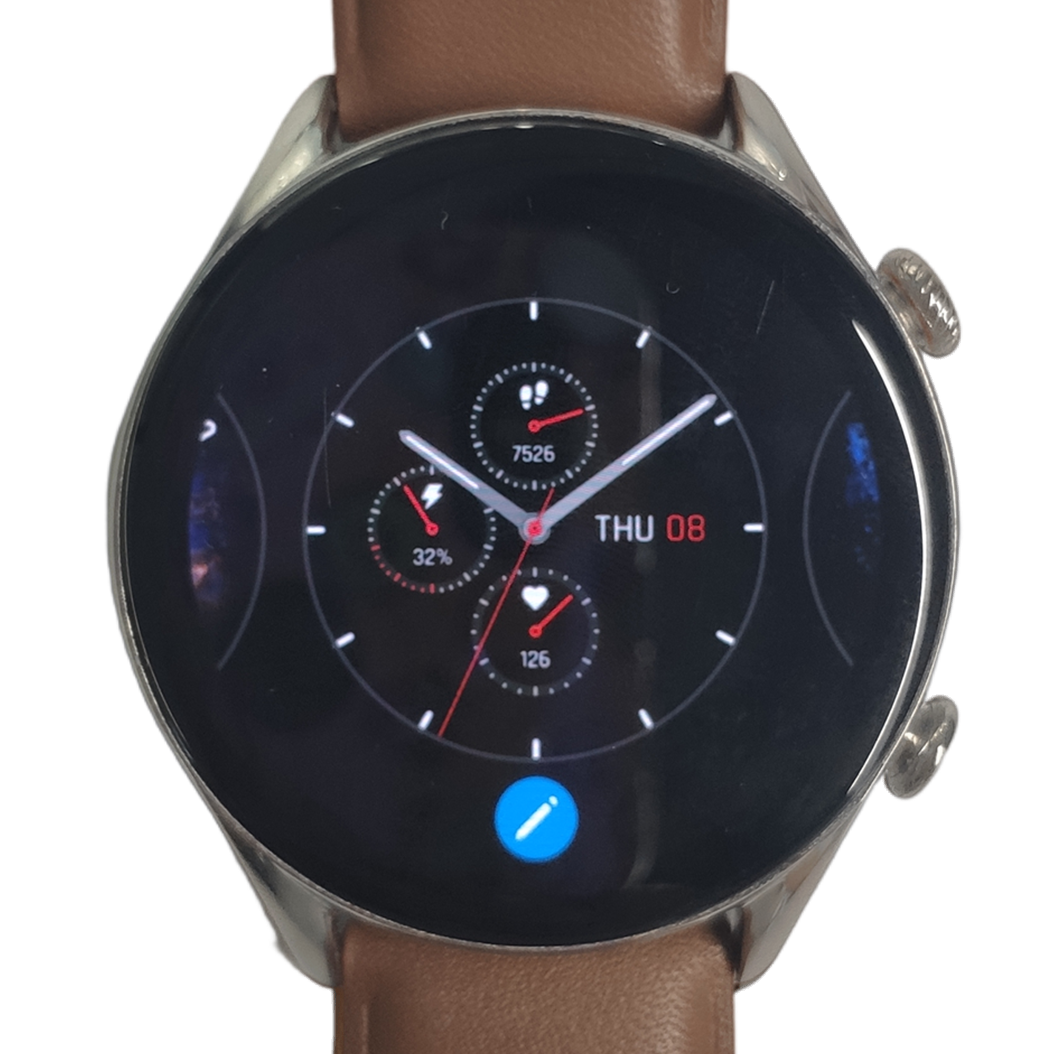
Long press the Watchface and click the edit button below to enter the edit mode
-
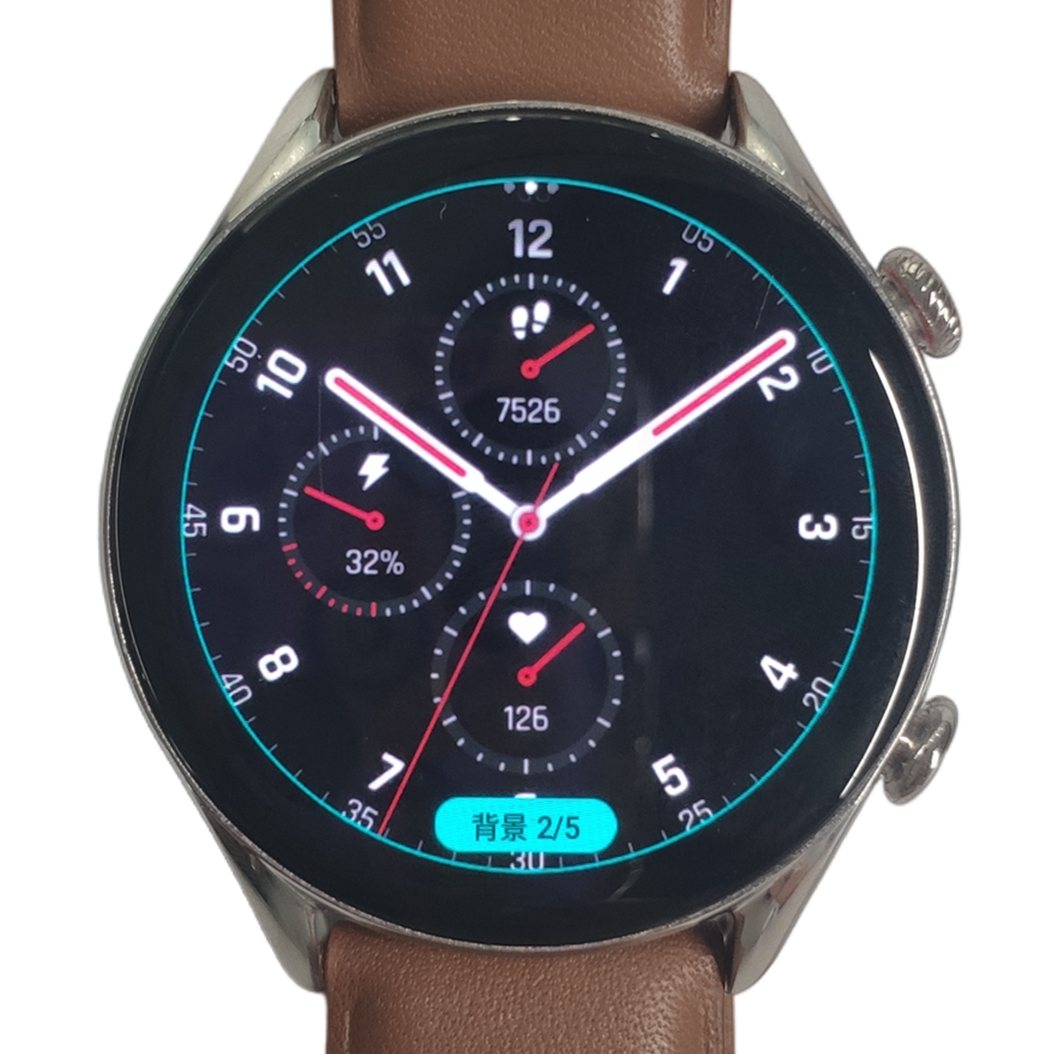
Tap the screen to switch the Watchface background
-
Press the side button of the watch to apply the current Watchface background
Add scale
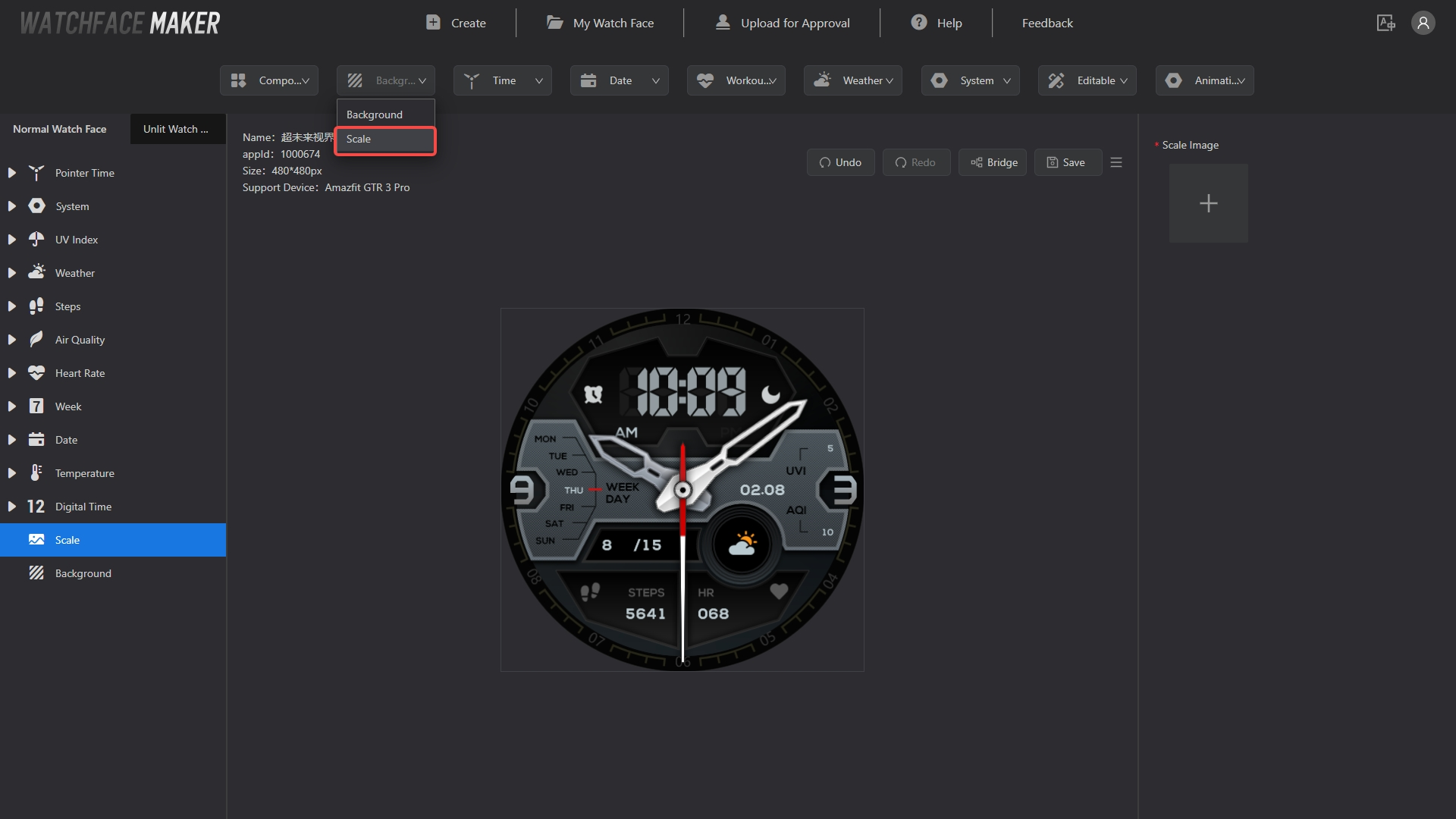
Create a new Watchface (or edit an existing Watchface), add the "Background - Scale" module from the top toolbar of the Watchface maker, and select "Scale" in the left menu
Material
Image of scales less than or equal to the size of the Watchface
Operation
Upload the image in the right menu
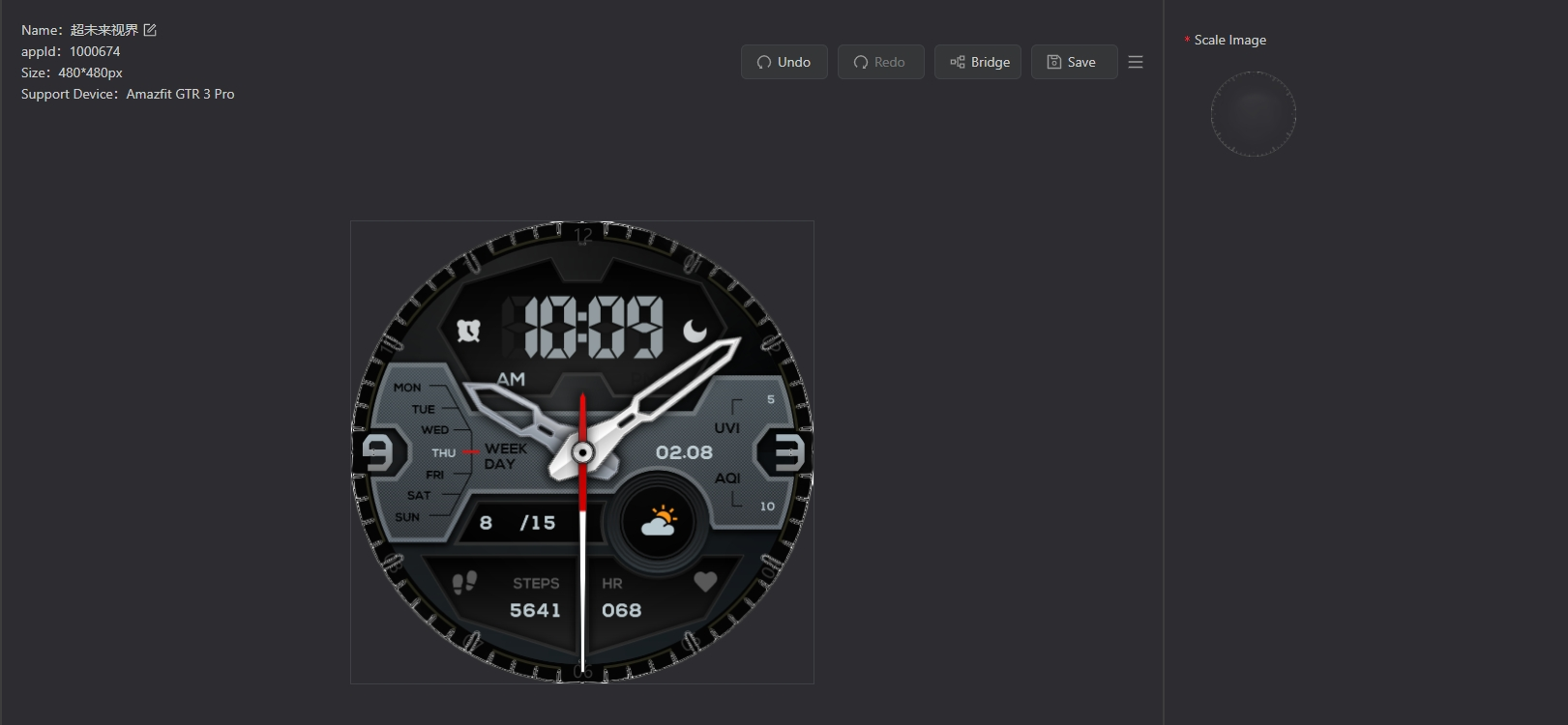
Preview and use
See Install through scanning QR code
Note
- The background should be placed at the bottom of the Watchface (you can drag and drop to change the hierarchy order)