CLI
Introduction
Zeus CLI is a fast development tool for Zeus Mini-program Framework, provide a better experience for developers, it provides the following functions:
- Realize a interactive project template
- Use template project from
npm - Connect simulator live preview
- Use Zepp APP to scan the QR code on real machine preview
- Compile and package the application
Prerequisites
All you need to get started is Node.js 14.x+ on macOS, Windows(WSL) or Linux.
CLI (
@zeppos/zeus-cli) is a globally installed npm package that provides the zeus command in the terminal.
npm i @zeppos/zeus-cli -g
Create project
Use @zeppos/zeus-cli to create a new project:
zeus create hello-world
NOTE
hello-world is the name of the created project
Generate the project according to the following selections:
? Which kind of template application need to created? Empty
? What type of application should be created? APP
? Should this application contain a app-side component? Yes
? Should this application contain a settings component? Yes
? Which platforms should this application be built for? GTR3 Pro, GTR3
After the creation is complete, the directory structure of the hello-world project is as follows:
└── hello-world
    ├── app-side
    │   ├── i18n
    │   │   └── en-US.po
    │   └── index.js
    ├── app.js
    ├── app.json
    ├── assets
    │   ├── 436x436-gtr-3
    │   └── 480x480-gtr-3-pro
    ├── pages
    │   ├── example
    │   │   └── index.js
    │   ├── i18n
    │   │   └── en-US.po
    │   └── index.js
    └── setting
        ├── i18n
        │   └── en-US.po
        └── index.js
Login
Execute zeus login to automatically jump to the login interface, enter the open platform account/password to log in, after logging in, you can use some of the functions associated with the account.
Development and debugging
Enter the project root directory and execute zeus dev to start local debugging.
# Enter the project root directory
cd hello-world

# Start development and debugging
zeus dev
In the simulator, you can see that the application has been installed. Modifying the project code will trigger a recompilation and reinstallation.
Real machine preview
Enter the project root directory and execute zeus preview to start the real machine preview.
# Start the real machine preview
zeus preview
NOTE
When not logged in, it will actively jump to the login interface.
Select the package corresponding to the device.
? Which target would like you to build?
> 480x480-gtr-3-pro
  454x454-gtr-3


? Which target would like you to build? 480x480-gtr-3-pro
begin generate qrcode
The terminal will display a QR code, which can be installed in the device by scanning the code with Zepp APP.

NOTE
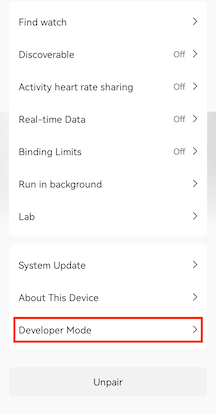
Entrance: Profile > Target Device Page > Developer Mode
Developer Mode is not found? See Developer Mode.
Build the application package
Enter the project root directory and execute zeus build to start the project package building.
# Build project package
zeus build
After the build is completed, the installation package of the project can be obtained in the project dist/ directory.
Configuration
zeus config list
view all current configurationszeus config set <key>=<value>
new configurationNOTE
Multiple settings are separated by spaceszeus config get <key>
view a configurationzeus config delete <key>
delete configuration
Developer Bridge Mode
Enter the project root directory and execute zeus bridge to enter Developer Bridge Mode. The Developer Bridge Mode allows you to establish a connection with the runtime environment. For more information, see Developer Bridge Mode
Status
Execute zeus status to view the current login status, user information (nickname/userID), emulator connection status, and other information.
NOTE
User information can only be viewed when you are logged in