Quick Start
Introduction
Some relevant background information:
- Device Requirements: Custom Keyboard functionality requires devices with API_LEVEL 4.2 and above
- Technical Architecture: Input functionality is implemented through "Keyboard Widget", which must be attached to a Mini Program host (see Overall Architecture)
- API Limitations: "Keyboard Widget" has access to most JS API capabilities, but with some limitations (see API Limitations)
Overall Architecture
Relationship: The "Keyboard Widget" is attached to a "Mini Program Host", and together they form a complete custom keyboard functionality.
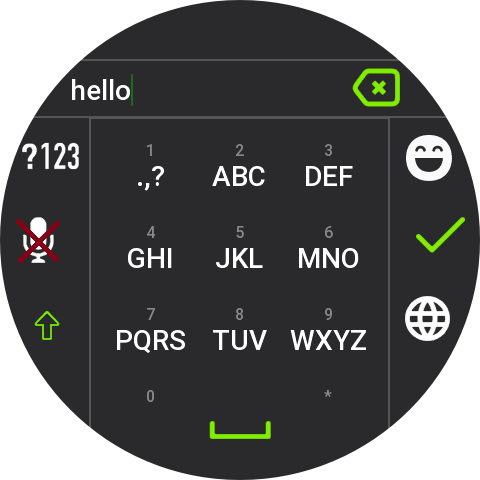
The "Keyboard Widget" is the interface that actually performs input operations, as shown in the image below:
The "Keyboard Widget" is attached to a "Mini Program Host" and needs to be registered in the app.json of the "Mini Program Host". See app.json Configuration for details.
The "Mini Program Host" can be accessed from the application list and typically includes the following features:
- Responsible for user guidance for custom keyboard functionality system settings
- Provides "Keyboard Widget" settings
- Provides an entry point to launch the "Keyboard Widget", allowing users to experience input effects within the app
The "Keyboard Widget" occupies the entire screen space. Custom keyboards need to be enabled in System Settings -> Preferences -> Keyboard. By clicking the globe icon in the system keyboard, you can switch the current keyboard to the "Keyboard Widget" for input.
The "Keyboard Widget" typically includes the following features:
- Input text field
- Keyboard Area
- Through a combination of keyboard APIs, intelligent features such as text prediction and smart completion can be implemented
Key Points
Related APIs
- DataWidget Constructor
- "Keyboard Widget" needs to be created using the
DataWidgetconstructor
- "Keyboard Widget" needs to be created using the
- SYSTEM_KEYBOARD API
- Through the
SYSTEM_KEYBOARDAPI, you can invoke the system keyboard in scenarios requiring input. By specifyinginputType, you can directly launch an enabled "Keyboard Widget"
- Through the
- keyboard API
- Through a combination of keyboard APIs, you can control input fields and cursors, and implement features like text prediction and smart completion
app.json Configuration
For app.json, please refer to Mini Program Configuration.
Custom Keyboard functionality can only be used on devices with API_LEVEL 4.2 and above. The minVersion needs to be configured as 4.2.
The "Keyboard Widget" needs to be configured in the module field, where data-widget represents system functionality extension configuration.
The widgets field is an array with a current maximum length of 1, meaning that within the same appId "Mini Program Host", at most 1 "Keyboard Widget" can exist simultaneously (multiple widgets may be supported in the future).
"module": {
  "data-widget":{
    "widgets": [{
      "name": "English",
      "path": "data-widget/index",
      "icon": "icon.png",
      "runtime": {
        "ability": [{
          "name": "en-US", // English
          "type": 2,
          "subType": []
        }]
      }
    }]
  },
}
| Property | Type | Description |
|---|---|---|
| name | string | Fill in the supported language, such as "en-US". For all supported languages, see Multi-language Mapping |
| type | number | Fill in 2 for custom keyboards |
The appName field in app.json represents the name of the "Keyboard Widget", displayed in System Settings -> Preferences -> Keyboard. The name displayed for the "Mini Program Host" in the application list is also appName.
Lifecycle
The lifecycle of "Keyboard Widget" is basically consistent with the Zepp OS Mini Program Lifecycle, with the addition of onResume and onPause lifecycle methods.
Before introducing the lifecycle, let's first introduce a concept called the "Pause" state. In this state, the application's context information is retained, but it cannot respond to registered callback functions, and registered timers are paused.
After the system keyboard is invoked, regardless of whether the "Keyboard Widget" is the currently selected keyboard, the onInit and build lifecycle methods of the "Keyboard Widget" will be executed, followed by triggering onPause (immediately onPause after creation is complete). When the "Keyboard Widget" is selected, onResume is triggered. When the user switches from the "Keyboard Widget" to another keyboard, the onPause lifecycle is triggered.
Mini Program Main Body Design Guidelines
The Mini Program main body must include keyboard enable guidance, and developers are encouraged to provide keyboard experience, settings, and personalization features in the Mini Program main body.
The enable guidance needs to include two steps:
- Keyboard Enable
- Corresponding APIs:
keyboard.isEnabled,keyboard.gotoSettings
- Corresponding APIs:
- Keyboard Switch
- Corresponding API:
keyboard.isSelected
- Corresponding API:
Complete Flow Description:
-
After entering the Mini Program main body, call
keyboard.isEnabledto determine if the keyboard is enabled- If not enabled → Enter keyboard enable guide page
- If enabled → Proceed to keyboard switch guidance
-
In the keyboard switch guidance phase, call
keyboard.isSelectedto determine if the current keyboard is selected- If not selected → Enter keyboard switch guide page
- If selected → Directly enter keyboard settings page
Flow Chart:
This flow is easier to understand when combined with the examples at the end of the document running on real devices. You can directly reuse the code and image resources from the sample applications, and developers are also encouraged to implement this part of the UI themselves.
The firmware of Amazfit Active 2 (Round), Amazfit Active 2 (Square), and Amazfit Bip 6 temporarily lacks these three APIs, which are expected to be fixed in the OTA at the end of 2025. If you publish your work before then, you need to check for API existence. If the APIs don't exist, it's recommended to show the keyboard enable guide and keyboard switch guide interface every time you enter the Mini Program main body.
API Limitations
- The "Keyboard Widget" has drawing area boundary limitations. The drawing area boundaries are consistent with the current device's screen boundaries. For example, with Amazfit Balance 2, the screen resolution is 480x480, and the drawing area cannot exceed this range.
- Any UI controls related to scrolling, sliding, and layer stacking cannot be used, such as
SCROLL_LIST,VIEW_CONTAINER - For user privacy protection, the "Keyboard Widget" cannot communicate with companion services and cannot use BLE-related APIs
Design Recommendations
Due to device screen size constraints, the keyboard is typically presented in full-screen mode. The upper section is the content area, used for real-time preview of text that has been entered and is being entered; the lower section is the keyboard area, primarily for character input and function key operations.
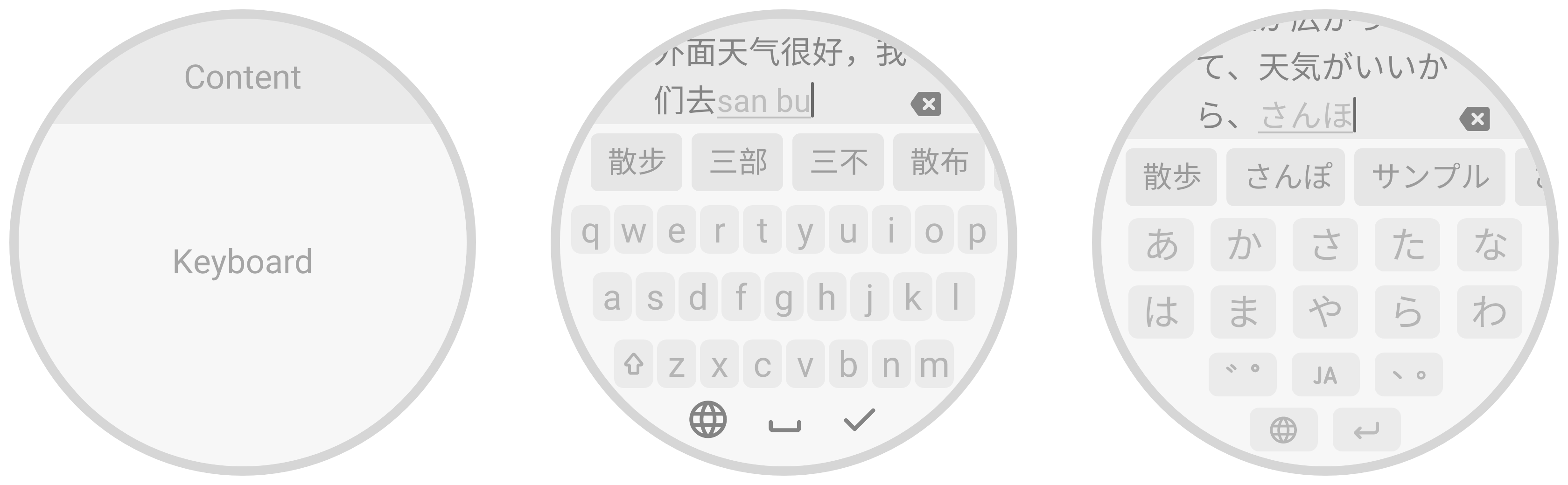
Input Area
- Content operations: retrieve text content (including all text, text before and after the cursor), insert or delete text characters, and listen for events when the user actively deletes text.
- Cursor control: support moving the cursor forward/backward by a specified distance or to the beginning/end of the text, and listen for events when the user actively moves the cursor.
- Composing character marker: For languages such as Chinese, Japanese, and Korean that require multi-stage character composition, use a special style in the display area to mark composing characters (e.g., Chinese Pinyin) for users to view and edit. After confirming the characters, clear the marker and keep the confirmed text in the content area. When a composing marker exists, restrict the cursor to move only within the marked range; at this time, pressing the confirm key is only for confirming the characters—define the characters to commit; if not defined, directly use the composing characters. If a keyboard switch or other action causes the current input state to exit, remove the marker and discard the composing characters.
Keyboard Area
The keyboard area is the core of a custom keyboard, where various character inputs and function key operations are implemented. Ensure the following key requirements are met:
- Keyboard switch key: typically displayed with a globe icon, used to quickly switch between multiple input methods or keyboards, or to open the keyboard menu.
- Confirm key: typically represented by icons such as checkmark, return, or send. When tapped, it commits the entered text and proceeds with subsequent actions (e.g., exit current input, send a message).
- Keyboard height: the height of the keyboard area can be customized, but ensure at least one line of text can be displayed to avoid the input and content areas obstructing each other.
- Multi-device adaptation: the keyboard must adapt to various shapes (round, square) and different screen sizes to ensure a consistent and usable input experience across devices.