Construction of basic environment
Introduction
The Zepp OS development environment is very simple to set up, requiring only a Node.js environment and a code editor.
This article will guide developers through a quick build of the Zepp OS development environment, including the installation of Node.js and the installation of the code editor.
Installing Node.js
Node.js is a cross-platform JavaScript runtime environment. npm is the package manager for Node.js modules.
nvm is a version management tool for Node.js. It allows you to install and switch between different versions of Node.js. We recommend using nvm to download and install Node.js.
Install nvm
The installation of nvm needs to be environment specific
For Windows, please see
Official documentation: https://github.com/coreybutler/nvm-windows
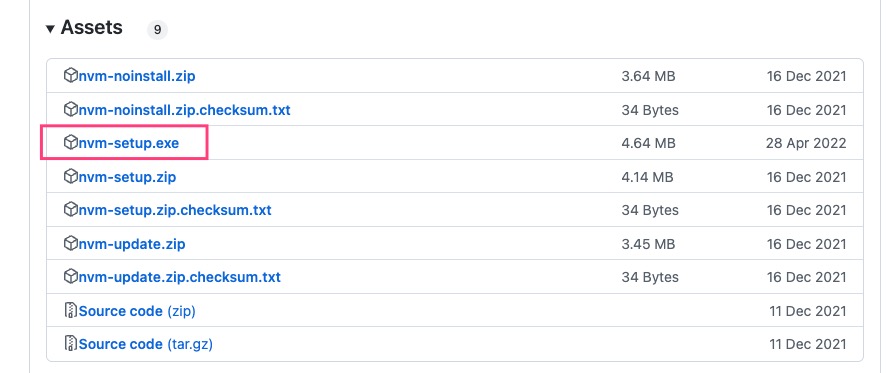
It is recommended to download the nvm-setup.exe installation package from nvm-windows Releases to install.
For MacOS and Linux, please see
Official documentation: https://github.com/nvm-sh/nvm
1.Open a terminal and run either of the following two lines of command.
curl -o- https://raw.githubusercontent.com/nvm-sh/nvm/v0.39.1/install.sh

// or

wget -qO- https://raw.githubusercontent.com/nvm-sh/nvm/v0.39.1/install.sh
2.Configure environment variables.
- Execute the command
vim ~/.bashrcto access the file.
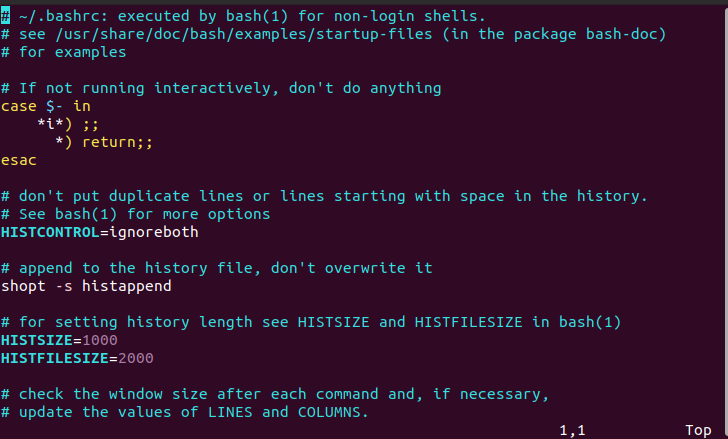
- Press
ito enter input mode (also known as edit mode) and begin editing the text by moving the cursor to the last line and adding the following fields.
export NVM_DIR="$([ -z "${XDG_CONFIG_HOME-}" ] && printf %s "${HOME}/.nvm" || printf %s "${XDG_CONFIG_HOME}/nvm")"
[ -s "$NVM_DIR/nvm.sh" ] && \. "$NVM_DIR/nvm.sh" # This loads nvm

- Press
escto save and then:wqto exit.
3.Verify that the installation is successful.
Execute nvm -v, if the version number is output, the installation is successful.

Installing and switching Node.js versions using nvm
Open the terminal command line (Windows recommended PowerShell) and follow the steps below to execute the command.
1.Type nvm insatll --lts to install the latest LTS version of Node.js.

2.Use nvm ls to view the installed version of Node.js
3.Use the nvm use <version> command to switch to any version.

4.Run node -v at the command line, if the version number is output, then Node.js is successfully installed.
Code Editor
There are many code editors to choose from, and we recommend that developers use the Visual Studio Code editor.
Introduction to VS Code
Visual Studio Code (VS Code for short) is a free, cross-platform source code editor developed by Microsoft. It supports syntax highlighting, automatic code completion (also known as IntelliSense), code refactoring, and has built-in command line tools and a Git version control system. VS Code is recommended for software development.
Download VS Code
It is recommended to download the corresponding installation package from the official VS Code website according to your operating system and install it.