Widget Layout Properties for Flex Layout
In Zepp OS, API_LEVEL 4.0 introduced support for Flex layout, allowing developers to build smartwatch application interfaces in a way similar to web development, greatly improving layout flexibility and development efficiency.
Flex (Flexible Box) is a layout mode in CSS3 specifically designed for creating flexible one-dimensional layouts (rows or columns). Flex layout can simplify the implementation of complex layouts and is particularly suitable for responsive design. To learn more about Flex layout concepts and usage, you can refer to the following documentation:
Implementing Flex layout in Zepp OS mainly consists of the following parts:
- Added
VIRTUAL_CONTAINERwidget as Flex layout container - Added layout properties to widgets, accepting CSS-like properties
- Widget node operation APIs for manipulating the widget node tree like DOM tree operations
VIRTUAL_CONTAINER Widget
VIRTUAL_CONTAINER is a special container widget that specifies the current container as the root node of Flex layout. Widgets within this container will be arranged and rendered according to Flex layout rules.
Layout Properties
Length Units
The layout property supports the px absolute length unit, for example: "width":"20px".
layout also supports the following relative length units:
| Unit | Description | Example |
|---|---|---|
| % | Percentage relative to parent element's size; for root container, screen size is used as reference | "width":"20%" |
| vw | 1% of viewport width, supports floating-point values | "width":"20vw" |
| vh | 1% of viewport height, supports floating-point values | "width":"20vh" |
| vmin | 1% of the smaller dimension of the viewport, supports floating-point values | "width":"20vmin" |
| vmax | 1% of the larger dimension of the viewport, supports floating-point values | "width":"20vmax" |
Note: Units vw, vh, vmin, vmax support floating-point values with precision up to 0.001, for example: "top" : "-3.549vmin".
Configuration Options
The layout property supports the following configuration options, very similar to CSS:
| Property Name | Description | Values and Units |
|---|---|---|
| width | Container width | Length value, supports all units; auto: automatically calculate actual width (for widgets containing text) |
| height | Container height | Length value, supports all units; auto: automatically calculate actual height (for widgets containing text) |
| min-width | Container minimum width; when width is set, works with max-width to limit width range | Length value, supports all units |
| max-width | Container maximum width; when width is set, works with min-width to limit width range | Length value, supports all units |
| min-height | Container minimum height; when height is set, works with max-height to limit height range | Length value, supports all units |
| max-height | Container maximum height; when height is set, works with min-height to limit height range | Length value, supports all units |
| padding-top | Container top padding | Length value, supports all units except % (supports padding shorthand) |
| padding-bottom | Container bottom padding | Length value, supports all units except % (supports padding shorthand) |
| padding-left | Container left padding | Length value, supports all units except % (supports padding shorthand) |
| padding-right | Container right padding | Length value, supports all units except % (supports padding shorthand) |
| row-gap | Container row gap | Length value, supports all units except % (supports gap shorthand) |
| column-gap | Container column gap | Length value, supports all units except % (supports gap shorthand) |
| left | Container left offset, mainly used for relative positioning | Length value, supports all units except % |
| top | Container top offset, mainly used for relative positioning | Length value, supports all units except % |
| right | Container right offset, mainly used for relative positioning | Length value, supports all units except % |
| bottom | Container bottom offset, mainly used for relative positioning | Length value, supports all units except % |
| align | Describes how the container aligns within its parent container's content area | - left horizontal left align- center horizontal center align- right horizontal right align- top vertical top align- middle vertical center align- bottom vertical bottom alignExample: "align": "center bottom" sets container to horizontal center and vertical bottom align |
| display | Layout type | - flex- grid (not supported yet) |
| flex-flow | Combination of flex-direction and flex-wrap properties, describes direction and wrapping of flexbox layout | - row (default)- row-reverse- column- column-reverse- nowrap- wrap- wrap-reverse |
| justify-content | Describes alignment of flex items along the main axis | - flex-start or start (default)- flex-end or end- center- space-between items evenly distributed: first item at start, last item at end- space-around items evenly distributed with equal space around- space-evenly equal spacing between any two items (and edges) |
| align-items | Describes alignment of flex items along the cross axis | Same as justify-content (default is center) |
| align-content | When there is extra space on cross axis, describes alignment of all tracks content on cross axis | - flex-start or start- flex-end or end- center (default) |
| flex-grow | Ability of flex item to grow when necessary | 16-bit positive integer |
| tags | Used to enable or disable (default) extended or debugging features; objects can have multiple tags separated by spaces | - update- unscaled- scale-with-dpi (shorthand swdpi)- scale-with-width (shorthand sww)- scale-with-height (shorthand swh)- ignore-layout- newtrack |
| font-size | Indicates object's text size; if applied to render object, only affects that render; if applied to control object, affects all text type render objects under that control | Length value, supports all units except % |
| corner-radius | Indicates object's corner radius; includes rw and rh values, rw before rh separated by space, e.g.: corner-radius="33 20"; if rw and rh are equal, can use single value, e.g.: corner-radius="33" | Length value, supports all units except % |
| line-clamp | Limits maximum number of lines for text; if text doesn't exceed limit, uses actual line count | 16-bit positive integer |
Widget Node Operation APIs
To help developers manage the widget tree structure, Zepp OS provides a series of widget node operation APIs. Here are the detailed explanations:
createWidget(type, props)
When creating a widget, a new parent property is added to specify the current widget's parent node.
setLayoutParent(parent)
Sets the parent node of the current node.
Parameters
parent: Widget instance participating in layout
Example
import { createWidget, widget, align } from '@zos/ui'

const container = createWidget(widget.VIRTUAL_CONTAINER, {
  layout: {
    x: '0',
    y: '0',
    width: '100%',
    height: '100%',
    display: 'flex',
    'justify-content': 'center',
    'align-items': 'center',
  },
})

const text = createWidget(widget.TEXT, {
  text: 'Hello Zepp OS',
  align_h: align.CENTER_H,
  align_v: align.CENTER_V,
  layout:{
    width:'200',
    height:'100',
  }
})

// Set text widget as child node of container
text.setLayoutParent(container)
addLayoutChild(child, index)
Adds a child node to the current node.
Parameters
child: Child widget instance to addindex: Optional, specifies insertion position index, defaults to end
Example
const container = createWidget(widget.VIRTUAL_CONTAINER)
const button = createWidget(widget.BUTTON)

// Add button as first child node of container
container.addLayoutChild(button, 0)
removeLayoutChild(child)
Removes specified child node from current node.
Parameters
child: Child widget instance to remove
Example
// Remove child widget from parent container
container.removeLayoutChild(button)
updateLayoutStyle(style)
Updates the node's layout style.
openInspector()
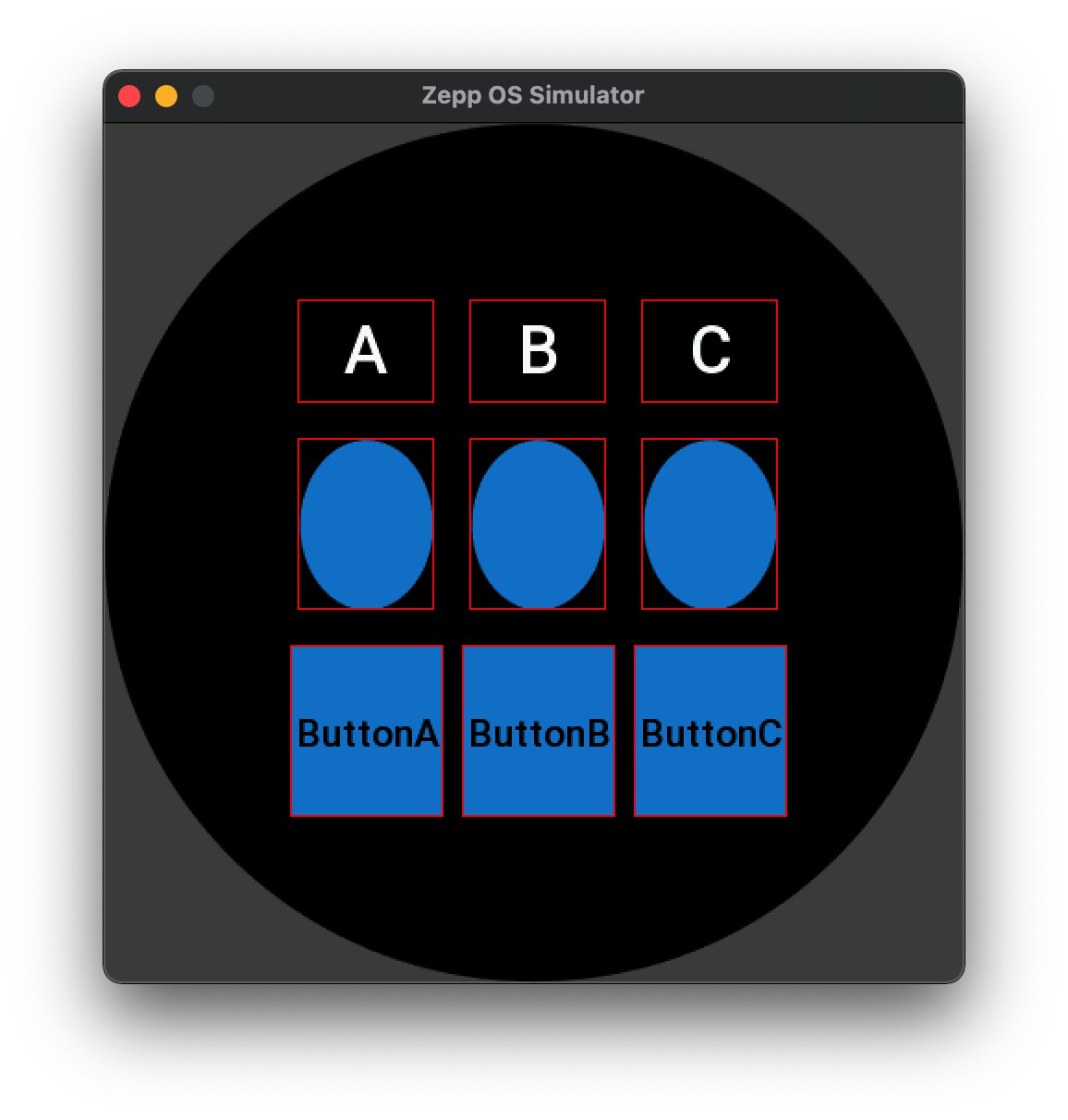
Used in simulator to draw boundary rectangles for all widgets participating in layout, helping developers debug layout issues. This method should be called after the build() lifecycle.
Parameters
style: Object containing layout properties
Example
// Update widget's layout style
widget.updateLayoutStyle({
  display: 'flex',
  'flex-flow': 'column',
  'justify-content': 'center',
  'align-items': 'center',
  width: '100%',
  height: 'auto'
})
updateLayout()
After modifying the widget tree, this method is needed to re-render the view.
Widget Support
The following widgets support the layout property for Flex layout:
Container Widgets
- SCROLL_LIST (Scrolling List)
- VIEW_CONTAINER (View Container)
- GROUP (Group Container)
Input Widgets
- CHECK_GROUP (Checkbox Group)
- SLIDE_SWITCH (Slide Switch)
- KEYBOARD (Keyboard)
- RADIO_GROUP (Radio Group)
Graphics Drawing Widgets
- CANVAS (Canvas)
- CIRCLE (Circle)
- ARC (Arc)
- FILL_RECT (Filled Rectangle)
- STROKE_RECT (Stroke Rectangle)
List Controls
- CYCLE_LIST
- CYCLE_IMAGE_TEXT_LIST
Basic Controls
- BUTTON
- TEXT
- STATE_BUTTON
- IMG
- IMG_ANIM
Other Controls
- WIDGET_PIKCER
- HISTOGRAM
- PAGE_INDICTOR
Note: Each control may support specific layout properties. Please refer to the detailed documentation for each control.
Complete Example
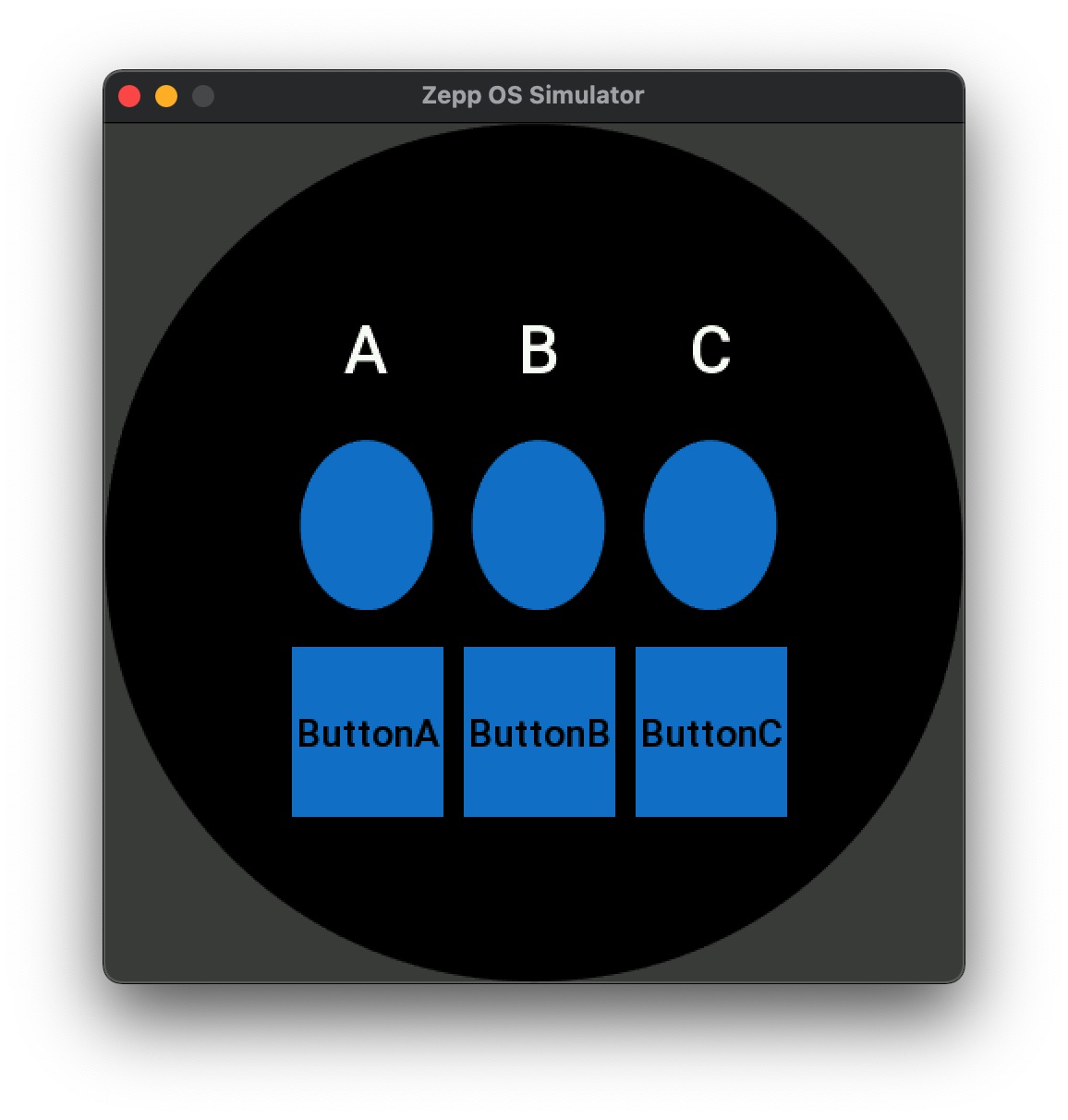
Let's demonstrate how to use Flex layout to create a 3x3 grid layout through a complete example. This layout consists of three horizontally arranged containers, each containing three vertically arranged elements, with event registration and control style modification implemented.
The above image shows a 3x3 layout:
- The entire layout consists of a root container and three column containers (
VIRTUAL_CONTAINERfor root container creation, child nodes created with specified parent container) - Three column containers are arranged horizontally with even distribution (layout properties implement Flex layout)
- Each column container has three elements arranged vertically: text, circular control, and button
- Clicking the circular control changes its color and size (modifying element properties)
- Clicking the button deletes the current text control; clicking the button again recreates the text control and inserts it into the control node tree (delete control node, add new control node, and re-render the view)
Layout Principle Analysis
-
Root Container: Uses
flex-flow: 'row'for horizontal layout andjustify-content: 'space-between'to evenly distribute the three column containers. -
Column Containers: Uses
flex-flow: 'column'for vertical layout,width: '33%'to control width, andjustify-content: 'space-between'to evenly distribute internal elements. -
Interactive Elements:
- Circular control supports click events, changing color and size when clicked
- Button supports click events, toggling text control visibility when clicked
- Uses
updateLayout()function to refresh the interface after dynamically modifying layout properties or the control tree
Complete Code
import {
  createWidget,
  widget,
  align,
  event,
  updateLayout,
  deleteWidget,
  openInspector
} from '@zos/ui'

Page({
  build() {
    // Create root container - 1 row 3 columns layout
    const rootContainer = createWidget(widget.VIRTUAL_CONTAINER, {
      layout: {
        display: 'flex',
        x: '100px',
        y: '100px',
        width: '60vw',
        height: '60vh',
        'justify-content': 'space-between',
        'align-items': 'center'
      }
    })

    // Helper function to create column containers
    const createColumnContainer = () => {
      return createWidget(widget.VIRTUAL_CONTAINER, {
        parent: rootContainer,
        layout: {
          display: 'flex',
          'flex-flow': 'column',
          width: '33%',
          height: '100%',
          'justify-content': 'space-between'
        }
      })
    }

    // Create three column containers
    const column1 = createColumnContainer()
    const column2 = createColumnContainer()
    const column3 = createColumnContainer()

    // Helper function to create child elements
    const createElements = (parent, label) => {
      // First element: Text
      let text = createWidget(widget.TEXT, {
        parent: parent,
        layout: {
          width: '80%',
          height: '20%'
        },
        text: label,
        color: 0xffffff,
        text_size: 36,
        align_h: align.CENTER_H
      })

      // Second element: Circle widget
      const circle = createWidget(widget.CIRCLE, {
        parent: parent,
        layout: {
          width: '80%',
          height: '33%'
        },
        color: 0x0986d4
      })

      // Register event listener for the widget
      circle.addEventListener(event.CLICK_DOWN, function (info) {
        console.log('Circle widget clicked')
        // Toggle between two colors when clicked
        if (circle.color === 0x0986d4) {
          circle.color = 0xff0000

          circle.updateLayoutStyle({
            width: '30%'
          })
          updateLayout()
        } else {
          circle.color = 0x0986d4

          circle.updateLayoutStyle({
            width: '80%'
          })
          updateLayout()
        }
      })

      // Third element: Button
      const button = createWidget(widget.BUTTON, {
        parent: parent,
        layout: {
          width: '90%',
          height: '33%'
        },
        text: 'Button' + label,
        color: 0x000000,
        normal_color: 0x0986d4,
        press_color: 0x055e8b,
        click_func: () => {
          console.log('Button' + label + 'clicked')

          if (text) {
            // Delete text widget
            parent.removeLayoutChild(text)
            deleteWidget(text)
            text = null
          } else {
            text = createWidget(widget.TEXT, {
              parent: parent,
              layout: {
                width: '80%',
                height: '20%'
              },
              text: label,
              color: 0xffffff,
              text_size: 36,
              align_h: align.CENTER_H
            })

            parent.addLayoutChild(text, 0)
          }

          // Manual layout update required after modifying widget tree
          updateLayout()
        }
      })
    }

    // Create child elements for each column container
    createElements(column1, 'A')
    createElements(column2, 'B')
    createElements(column3, 'C')

    // View widget layout boundaries for debugging
    // setTimeout(() => {
    //   openInspector().draw({
    //     line_color: 0xff0000,
    //     line_width: 1,
    //     border_mode: 1,
    //   });
    // }, 200);
  }
})
Code Analysis
- Import Required Modules
First, we import the necessary UI modules, including functions for creating widgets, widget types, alignment, event handling, layout updates, and widget deletion:
import {
  createWidget,
  widget,
  align,
  event,
  updateLayout,
  deleteWidget,
  openInspector
} from '@zos/ui'
- Create Root Container
We create a root container with Flex layout, specifying its position, size, and child element arrangement:
const rootContainer = createWidget(widget.VIRTUAL_CONTAINER, {
  layout: {
    display: 'flex',
    x: '100px',
    y: '100px',
    width: '60vw',
    height: '60vh',
    'justify-content': 'space-between',
    'align-items': 'center'
  }
})
Note that we use relative units vw and vh here to make the layout adaptable to different screen sizes.
- Create Column Containers
We define a helper function to create column containers, where each column container is a vertical Flex layout:
const createColumnContainer = () => {
  return createWidget(widget.VIRTUAL_CONTAINER, {
    parent: rootContainer,
    layout: {
      display: 'flex',
      'flex-flow': 'column',
      width: '33%',
      height: '100%',
      'justify-content': 'space-between'
    }
  })
}
Here we use the parent property to directly specify the parent container, which is more concise than using setLayoutParent.
- Create Interactive Elements
We define a helper function to create child elements for each column container, including text, circular widgets, and buttons:
const createElements = (parent, label) => {
  // Create text, circular widget, and button
  // ...
}
- Implement Interactivity
We add a click event to the circular widget that changes its color and size when clicked:
circle.addEventListener(event.CLICK_DOWN, function (info) {
  // Toggle between two colors when clicked
  if (circle.color === 0x0986d4) {
    circle.color = 0xff0000
    circle.updateLayoutStyle({
      width: '30%'
    })
    updateLayout()
  } else {
    // ...
  }
})
We add a click event to the button that deletes the text widget and recreates it, inserting it into the widget tree
Note that when deleting a widget, you need to both use parent.removeLayoutChild to remove the node and deleteWidget to delete the widget instance.
click_func: () => {
  if (text) {
    // Delete text widget
    parent.removeLayoutChild(text)
    deleteWidget(text)
    text = null
  } else {
    // Recreate text widget
    // ...
    parent.addLayoutChild(text, 0)
  }

  // Manual layout update required after modifying widget tree
  updateLayout()
}
- Debugging Tools
The code includes a commented-out openInspector call that can be used to view widget layout boundaries:
setTimeout(() => {
  openInspector().draw({
    line_color: 0xff0000,
    line_width: 1,
    border_mode: 1
  })
}, 200)
This tool is very useful during development, helping us verify if widget positions and sizes meet our expectations.
Layout Tips Summary
-
Use Relative Units: Using
vw,vh, and percentage units creates responsive layouts that adapt to different screen sizes. -
Nested Flex Layouts: Complex interface structures can be created through nested Flex layouts, combining horizontal and vertical layouts.
-
Dynamic Layout Updates: Use the
updateLayoutStylemethod to dynamically modify widget layout styles, along with theupdateLayoutfunction to refresh the interface. -
Widget Tree Operations: Use
addLayoutChildandremoveLayoutChildmethods to dynamically add and remove widgets, creating richer interactive effects. -
Event Handling: Add event listeners to widgets to respond to user interactions, creating dynamic interface effects.
Through this complete example, we've demonstrated how to create a responsive interactive interface using Flex layout. This layout approach not only makes the code more concise but also makes the interface more flexible, adapting to different screen sizes and interaction scenarios.